Administration Portal Overview
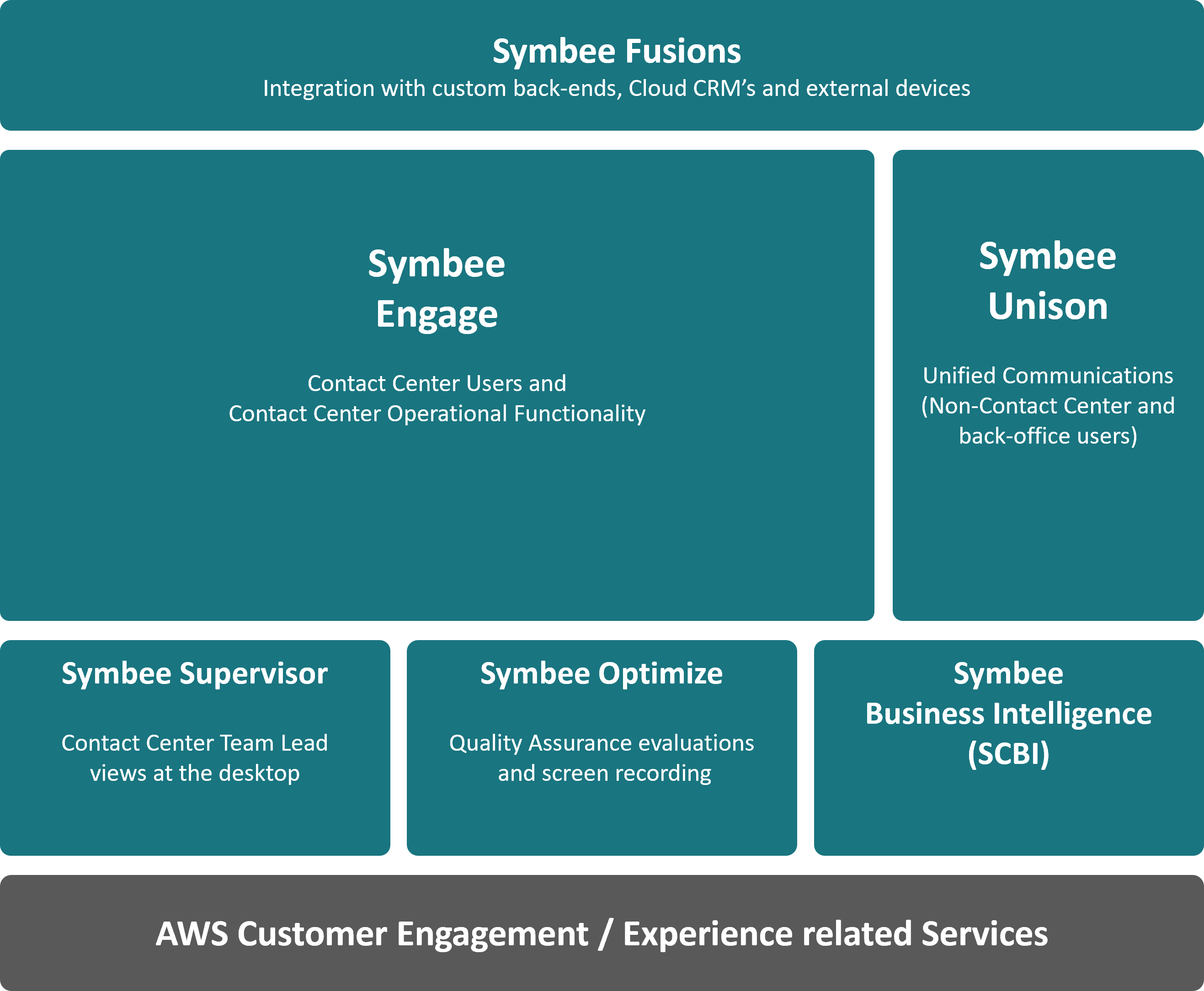
The Symbee Connect suite of products provide a wide range of Contact Center and Non-Contact Center functionality to users. The Symbee Connect Administration Portal is the central interface for the configuration and management of all Symbee Connect products and features.
Below gives context to the terms and products referred to in the Administration Portal:
Navigation
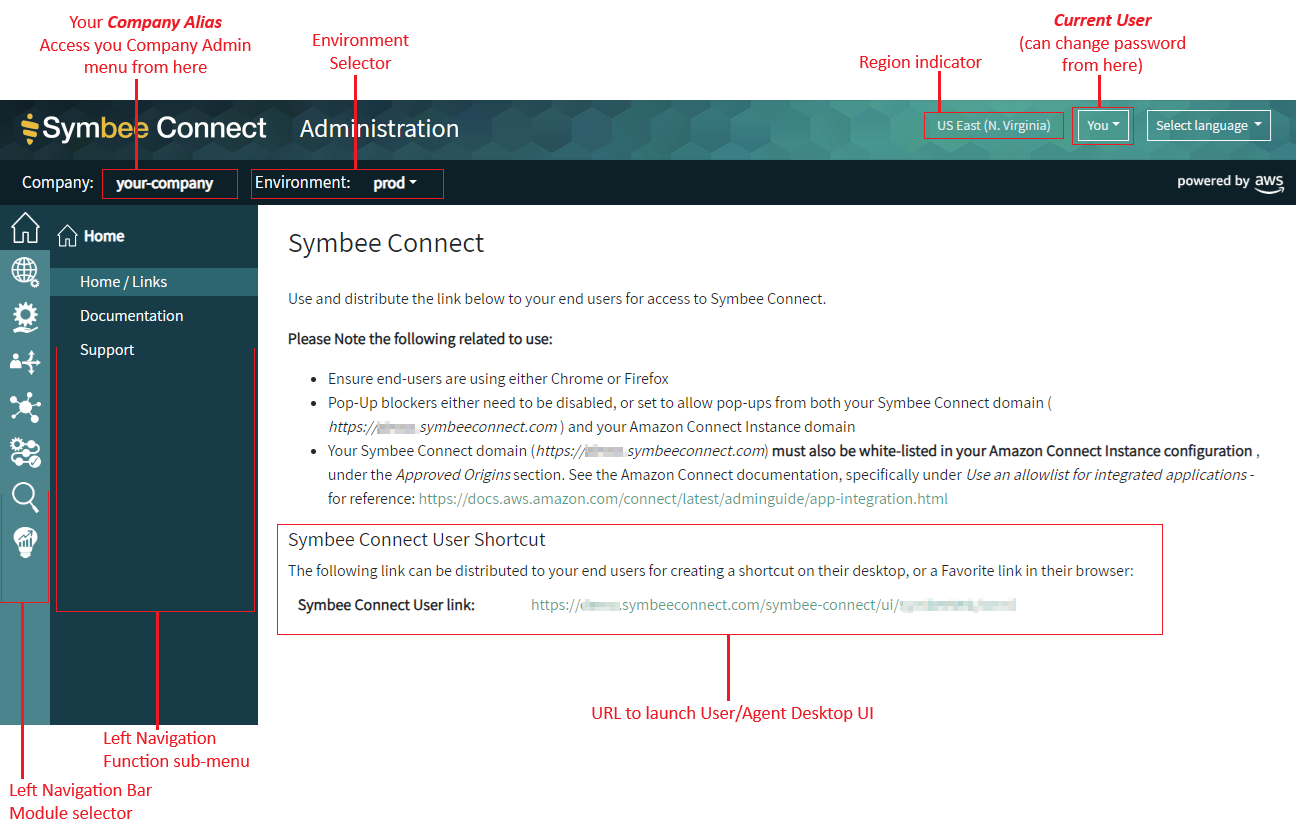
The Administration Portal is structured as follows:
Company Configuration
Your Company Alias is displayed to the left in the top navigation bar. The Company in Symbee Connect represents your overall global account, and is referred to using your Company Alias - chosen during sign-up, and entered each time you sign in to your Administration Portal.
Navigating to the your Company Configuration menu
By default, when you first log into the Administration Portal, you land on the Home / Links page of the Home module for your default Environment (shown in the screen shot above).
To access your overall Company settings (which are common to ALL your Environments), click your Company Alias in the top navigation bar. Doing so changes the left navigation bar to be your overall Company Configuration menu. Clicking the Return Home icon in the top-left of the vertical navigation menu will return you from the Company Configuration menu back to the Home menu for the currently selected Environment.
Environment Selector
The second button in the top navigation bar is the Environment selector - it shows the currently selected Environment, and is how you change between configured Environments within your Company for administration purposes.
Refer to Your Company and Environments for more details on the relationship between your Company and Environments.
Administration Users
The top-right of the screen, (Current User in the above screen-shot) shows your currently logged in Administration User. Clicking shows your User Settings, and allows you to change your current password (if not using Single-Sign-On). Maintenance of Administration Users is accessed from your Company Configuration menu (see above).
Function navigation, and navigation in general
Functions - the screens/pages within the Administration Portal representing different configuration aspects - are grouped into modules, and accessed through the two-tier vertical navigation menus on the left.
All functions/pages accessed through the left-navigation bar are associated with a specific Environment. The Environment selector (in the top navigation bar) indicates which environment you are configuring, and may also allow you to switch between environments (if you have access to do so).
Exactly what modules and functions are available to you in the left navigation bars will depend on the security role (or roles) assigned to your Administration user. Security roles and access are fully configurable (through the Company Configuration menu - see above). For more details, see Administration User Security Roles.